Pi-hole on a VPS: Block Ads and Trackers for Your Whole Network. Script + Guide
- Price in currencies:
- 11.82 $ · 838 RUB · 10.77 €
- Category:
- Others
- Item:
- pihole-vps-v1.0.zip (66.14 KB)
- Uploaded:
- 25.11.2026 11:50:47
- Sales:
- 0
- Refunds:
- 0
- Seller:
- Новинка Супер хит! · about the seller and their products
DESCRIPTION
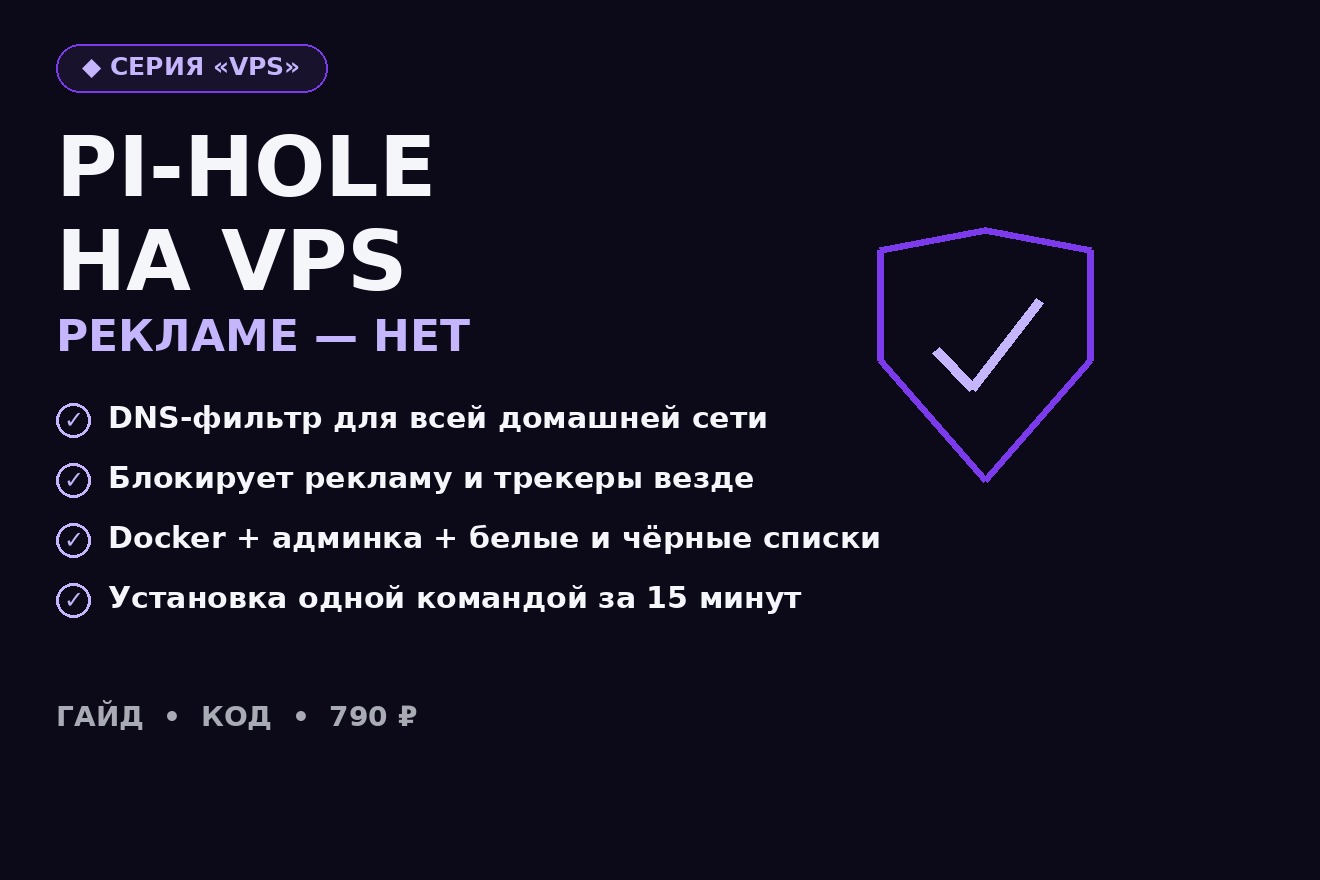
Pi-hole on a VPS: Block Ads and Trackers for Your Whole Network. Script + Guide
Pi-hole is a DNS filter: it sits between your devices and the internet and stops advertising and tracking domains from loading. Ads never reach browsers and apps because a device simply does not get the IP address of the ad server. One Pi-hole on a VPS serves every device at home or in the office at once: phones, laptops, TV, smart speakers. Just set the server IP as the DNS on your router — and blocking works for the whole network.
Setup takes 15 minutes: copy the folder to the server and run ./install.sh. The script checks Docker and Docker Compose, creates a .env with a random admin password and starts the container. The admin panel opens at http://SERVER_IP:8080/admin — with a request chart, a per-device DNS query log, allow and deny lists, and stats on how many requests were blocked.
Blocklists update with one command, ./update-lists.sh; the guide includes a ready cron line for weekly auto-updates at night. Settings, lists and stats live in the etc-pihole and etc-dnsmasq.d folders next to the compose file: back up by copying them together with .env, restore on a new server by unpacking the archive over them and running docker compose up -d.
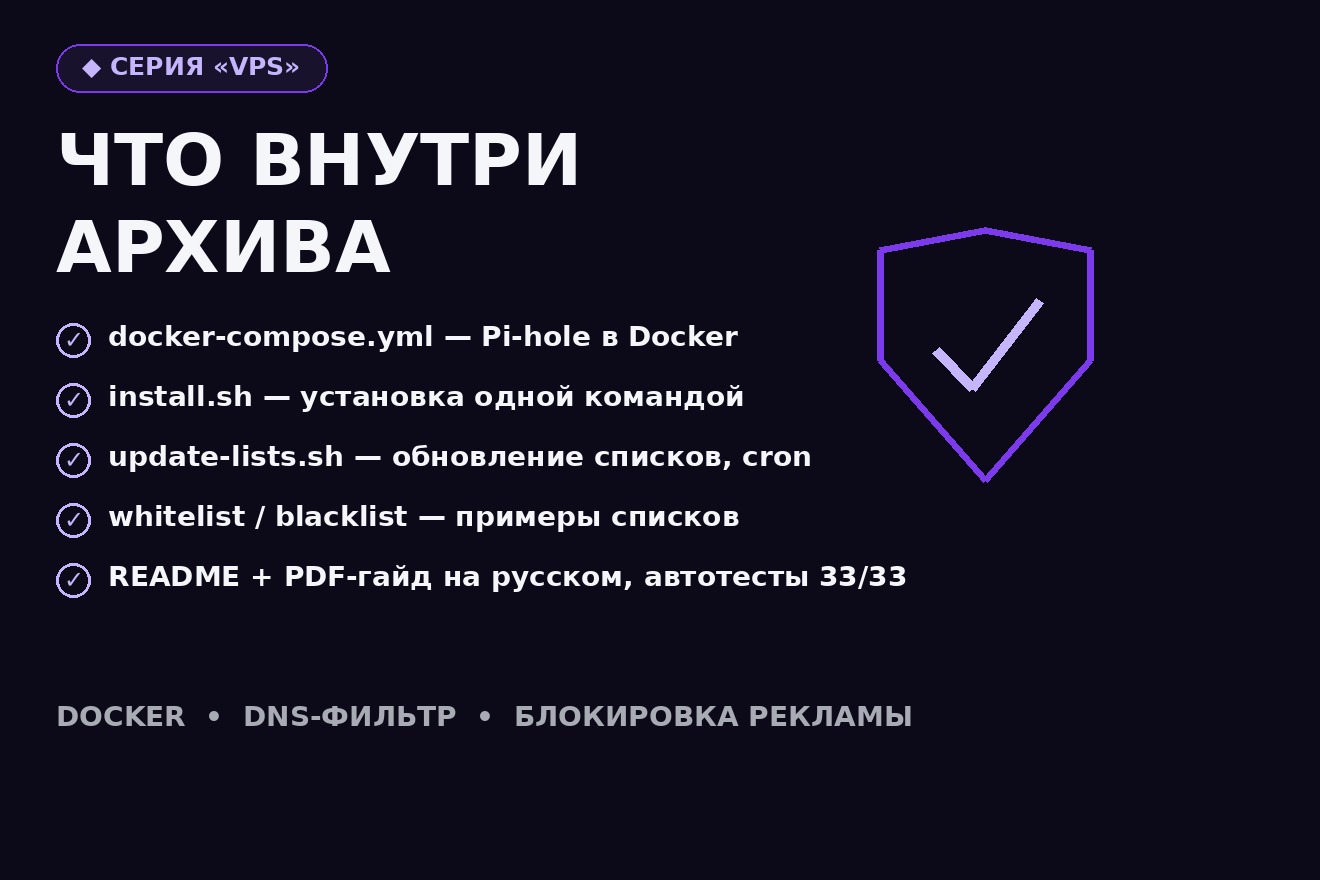
WHAT´S INSIDE THE ARCHIVE
• docker-compose.yml — Pi-hole in Docker (pihole/pihole image, ports 53 and admin panel)
• .env.example — sample settings: admin password, DNS, port, timezone
• install.sh — one-command install: Docker check, password generation, launch
• update-lists.sh — blocklist updates (gravity), ready cron line
• whitelist.txt.example / blacklist.txt.example — sample allow and deny lists
• test_pihole.py — automated package tests, no live VPS or Docker needed
• README.md and PDF — full guide: install, DNS, admin panel, lists, backup, troubleshooting
GUIDE STEPS
1. Copy the folder to the server: scp -r pihole-vps-v1.0 user@SERVER_IP:~/.
2. ./install.sh — Docker check, .env with password, container launch.
3. Admin panel: http://SERVER_IP:8080/admin, password from .env.
4. Set the server IP as DNS on the router or on devices.
5. Check: nslookup doubleclick.net must return 0.0.0.0.
6. Lists: Domains → Allowlist / Denylist in the admin panel.
7. Updates: ./update-lists.sh, cron — once a week at night.
WHAT YOU NEED
A VPS with Ubuntu 22.04 / Debian 12 or newer, 1 GB RAM, 10 GB disk, Docker and Docker Compose v2 (if Docker is not installed — the official get.docker.com script) and a free port 53. 15 minutes for the first setup.
HONEST LIMITS
Pi-hole blocks ads and trackers at the DNS level: it stops ad domains from loading. Ads inside apps (for example, in the YouTube app) that load from the same domains as the content itself cannot be removed by Pi-hole — blocking such a domain would break the service itself. It does not block ads in YouTube videos served from YouTube´s own domains: that needs a browser blocker (for example, uBlock Origin). It does not encrypt traffic or hide your IP: this is not a VPN, your provider still sees which IPs you connect to. It only works where a device uses your Pi-hole as its DNS: outside your home network, without a VPN to your VPS, there is no blocking. Port 53 must not be opened to the internet without need: an open DNS resolver is abused for attacks and the server ends up on blacklists — LISTENING_MODE=LOCAL and a closed firewall are mandatory.
IMPORTANT
These are files and a guide for self-setup — not a done-for-you installation. If you need Pi-hole installed on your server turnkey, that´s a separate service.
SIMILAR PRODUCTS
• Your Own VPN on a VPS: Outline for Your Team. Scripts + Guide: https://plati.market/itm/your-own-vpn-on-a-vps-outline-for-your-team-scripts-guide/6439432
• Your own WireGuard VPN on a VPS in 15 minutes: install & client scripts + guide: https://plati.market/itm/your-own-wireguard-vpn-on-a-vps-in-15-minutes-install-client-scripts-guide/6410603
• Your Own Password Manager on a VPS: Vaultwarden in Docker. Stack + Guide: https://plati.market/itm/your-own-password-manager-on-a-vps-vaultwarden-in-docker-stack-guide/6443852
• VPS Disk Monitoring: Space, Growth, Telegram Alerts: https://plati.market/itm/vps-disk-monitoring-space-growth-telegram-alerts/6439442
• SSL Certificate Monitoring with Telegram Alerts. Script + Guide: https://plati.market/itm/ssl-certificate-monitoring-with-telegram-alerts-script-guide/6443860
• Website Uptime Monitoring Without Docker: cron + curl + Telegram. Scripts + Guide: https://plati.market/itm/website-uptime-monitoring-without-docker-cron-curl-telegram-scripts-guide/6429385
REVIEWS
Reviews: (0)
No customer reviews yet.