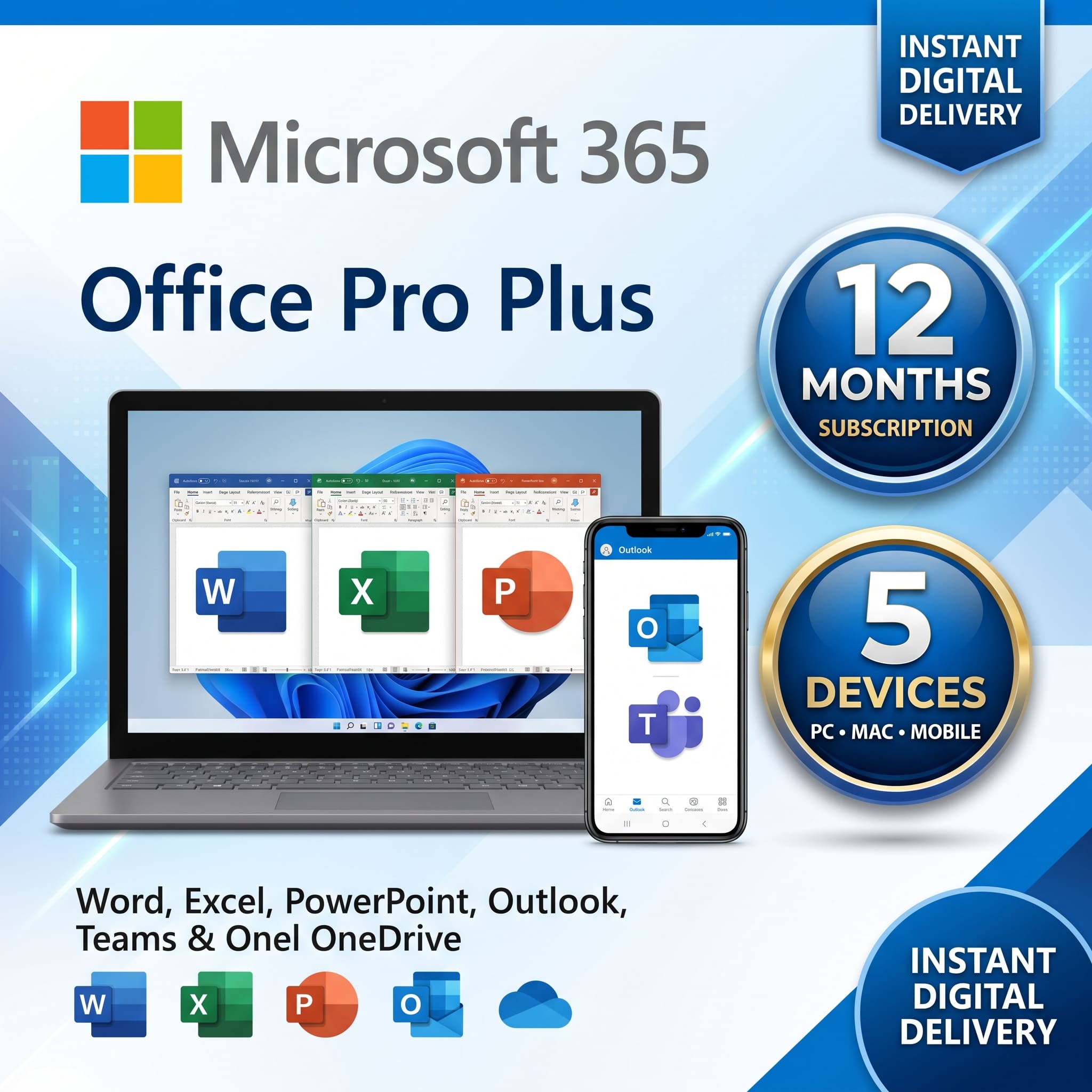
Microsoft Office 365 Pro Plus | 12-Month Private Account (Up to 5 Devices)
- Price in currencies:
- 1 $ · 101 RUB
- Category:
- Office
- Item:
- text information
- Uploaded:
- 13.10.2026 8:51:36
- Sales:
- 4
- Refunds:
- 0
- Seller:
- Blue Chips · about the seller and their products
DESCRIPTION
Microsoft Office 365 Pro Plus | 12-Month Private Account (Up to 5 Devices)
Microsoft Office 365 Pro Plus - 12-Month Private Account 💻✨
Get full access to all premium Office applications with instant delivery and warranty.
🔹 PRODUCT FEATURES:
• 12-Month Private Account (This is NOT a shared account).
• Valid for up to 5 Devices (PC, Mac, Tablets, and Smartphones).
• Automatic delivery of email and password.
• The password is 100% customizable by you.
• 1-Month Warranty included.
⚙️ INSTALLATION & USAGE INSTRUCTIONS:
To ensure a successful activation, please follow these steps exactly:
Delete any versions of Office (other than Office 365) currently installed on your computer.
Open your web browser and go to: portal.office.com/account (Tip: Open this in an incognito/private tab to avoid mixing it up with your other personal accounts).
Sign in using the email address and password provided to you after your purchase.
Since this is your first time logging in, the system will ask you to create a new password. Set a new password and be sure to write it down.
If Microsoft asks you to verify your account via SMS or two-factor authentication, please complete the verification process.
After logging in, look for the "Install Office Application" (or "Install the Workplace app") button in the upper right corner and click it.
Click on "Office 365 Applications" to start the download process.
Once the installation is complete, open any Office app (like Word or Excel) and sign in using the assigned email address and the new password you just created.
⚠️ IMPORTANT WARNING - PLEASE READ:
When you change the password at your first login, you are solely responsible for remembering it. If you forget or lose this newly created password, you will not be able to log in to the account again, and there will be no compensation, refund, or replacement. Please keep your new password written down in a safe place!
Additional information:
⚙️ INSTALLATION & USAGE INSTRUCTIONS:
To ensure a successful activation, please follow these steps exactly:
Delete any versions of Office (other than Office 365) currently installed on your computer.
Open your web browser and go to: portal.office.com/account (Tip: Open this in an incognito/private tab to avoid mixing it up with your other personal accounts).
Sign in using the email address and password provided to you after your purchase.
Since this is your first time logging in, the system will ask you to create a new password. Set a new password and be sure to write it down.
If Microsoft asks you to verify your account via SMS or two-factor authentication, please complete the verification process.
After logging in, look for the "Install Office Application" (or "Install the Workplace app") button in the upper right corner and click it.
Click on "Office 365 Applications" to start the download process.
Once the installation is complete, open any Office app (like Word or Excel) and sign in using the assigned email address and the new password you just created.
⚠️ IMPORTANT WARNING - PLEASE READ:
When you change the password at your first login, you are solely responsible for remembering it. If you forget or lose this newly created password, you will not be able to log in to the account again, and there will be no compensation, refund, or replacement. Please keep your new password written down in a safe place!
REVIEWS
Reviews: (0)
No customer reviews yet.