Upscaler
- Price in currencies:
- 15 $ · 1508 RUB · 13.31 €
- Category:
- Animation, Videos
- Item:
- text information (80 characters)
- Uploaded:
- 01.10.2026 13:58:07
- Sales:
- -1
- Refunds:
- -1
- Seller:
- elrokho · about the seller and their products
DESCRIPTION
Upscaler
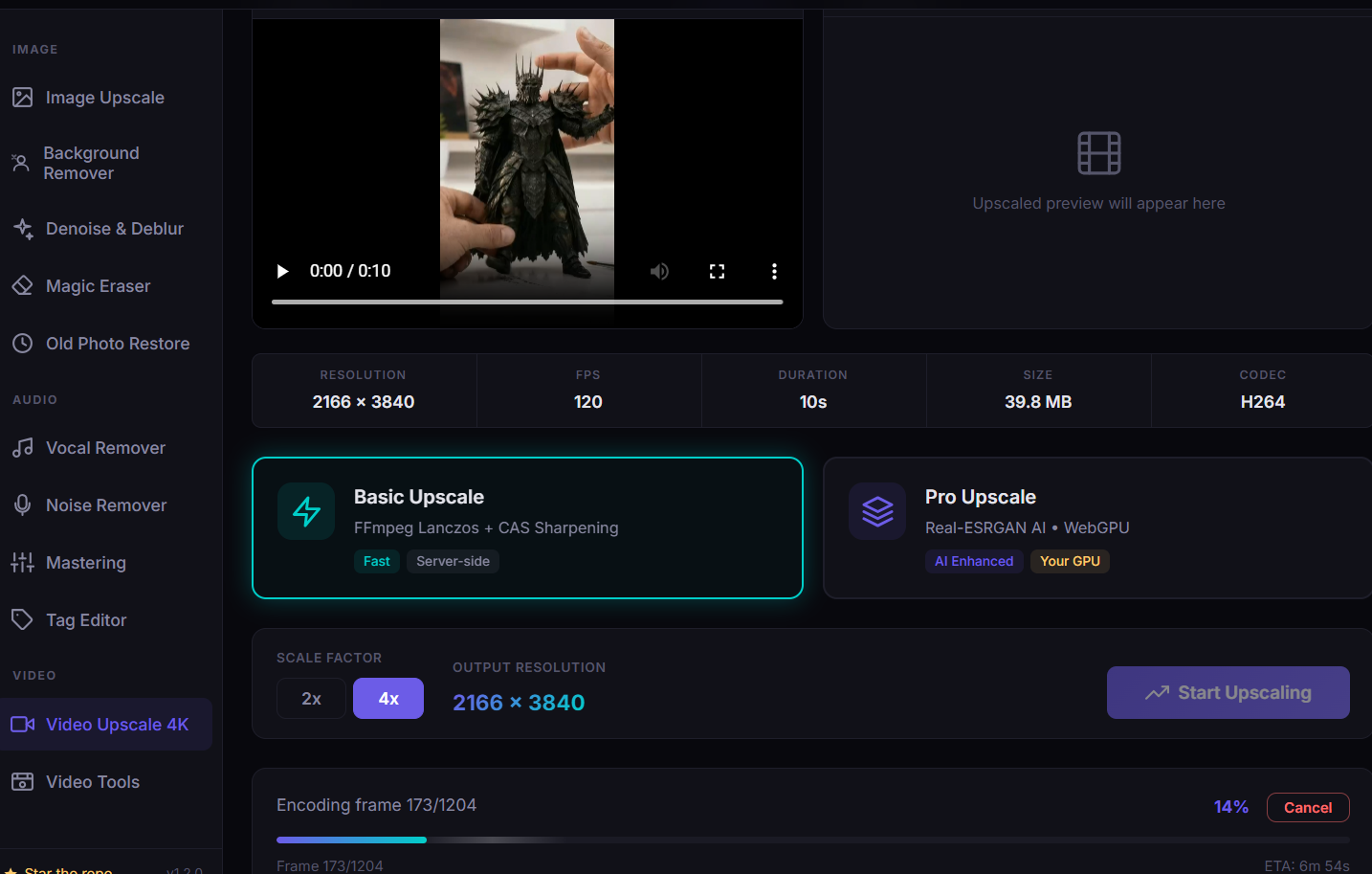
Upscale images to 8K and videos to 4K, remove backgrounds, erase unwanted objects, denoise and deblur photos, colorize old black-and-white pictures, split songs into vocals and instrumental, remove background noise from recordings, master tracks with one click, compress videos to a target size, and remove music or noise from a video´s audio — using Real-ESRGAN, BiRefNet, LaMa, SCUNet, NAFNet, DDColor, GFPGAN, MDX-Net, and DeepFilterNet, entirely on your own machine. no cloud, no subscription, no watermarks, and no upload of your files to anyone´s server
you will get a download link containing installe file no regestration needed once you installe it is ready to use
Additional information:
Step-by-Step Feature Guide
1. Image & Video Upscaling
* Image Upscaling (Up to 8K): Go to *Image Upscale*, select your scale (2x or 4x), and choose a mode: *Quick* (fast browser AI), *Quality* (FFmpeg + Real-ESRGAN), or *Ultra* (maximum detail).
* Video Upscaling (Up to 4K): Go to *Video Upscale 4K*. Select *Basic* for fast upscaling or *Pro* for frame-by-frame AI processing. You can also drop multiple files to create a batch queue.
* Face Restoration: Toggle *Face Restoration* (uses *GFPGAN*) to reconstruct facial details in photos or videos that generic upscaling misses.
2. Image Cleanup & Restoration
* **Remove Backgrounds:** Select **Background Remover** (powered by **BiRefNet**). Drop your photo to isolate the subject as a transparent PNG, or set a solid white/custom background.
* **Erase Objects (Magic Eraser):** Go to **Magic Eraser** (powered by **LaMa**), paint over any unwanted object or text with the brush tool, and click **Erase**.
* **Denoise & Deblur:** Select **Denoise & Deblur**. Use **Remove Noise** (**SCUNet**) for grainy, low-light photos, or **Remove Blur** (**NAFNet**) for camera shake.
* **Colorize Old Photos:** Select **Old Photo Restore** (powered by **DDColor**) to automatically colorize black-and-white photos, restore faces, and clean up aged artifacts in one pass.
3. Audio & Music Editing
* **Split Vocals & Instruments:** Go to **Vocal Remover** (powered by **MDX-Net**). Upload an audio track to separate it into isolated vocals (acapella) and instrumental backing (karaoke).
* **Clean Speech Recordings:** Go to **Noise Remover** (powered by **DeepFilterNet**) to isolate voices and strip out background room noise, traffic, or hums.
* **One-Click Mastering:** Select **Mastering** to run pure local DSP mastering with loudness measurement, tuning options, and live A/B comparison.
4. Video Tools & Audio Stripping
* **Remove Audio / Music / Noise:** Go to **Video Tools** and select the audio option. You can mute background noise, strip background music, or extract/remove voices from the video without altering the video track.
* **Compress Video:** Choose **Compress**, pick a target file size (e.g., Discord 10 MB, Email 25 MB, WhatsApp 100 MB), and the app will compress your video to fit that exact limit.
General Workflow
1. **Launch the App:** Open NextGenUp on your desktop or via your local browser.
2. **Select Tool:** Choose the desired tool from the sidebar menu.
3. **Drop Files:** Drag and drop your target file (or drop a folder/multiple files for batch mode).
4. **First-Run Model Download:** If a specific AI model hasn´t been used yet, it will download locally once to your system.
5. **Process & Export:** Click the action button, preview the result using the before/after slider, and download the finished file. Everything processes 100% locally on your machine.
REVIEWS
Reviews: (0)
No customer reviews yet.