


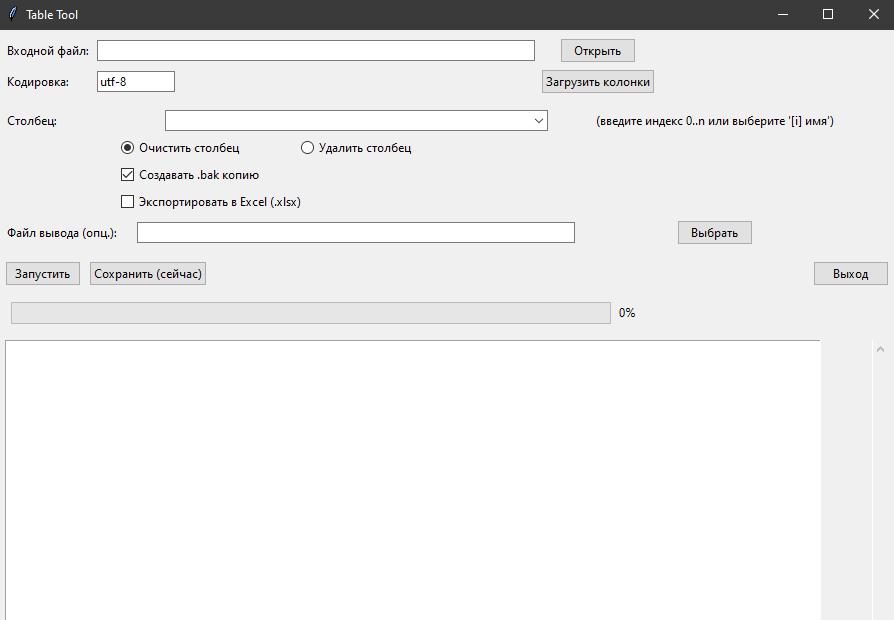
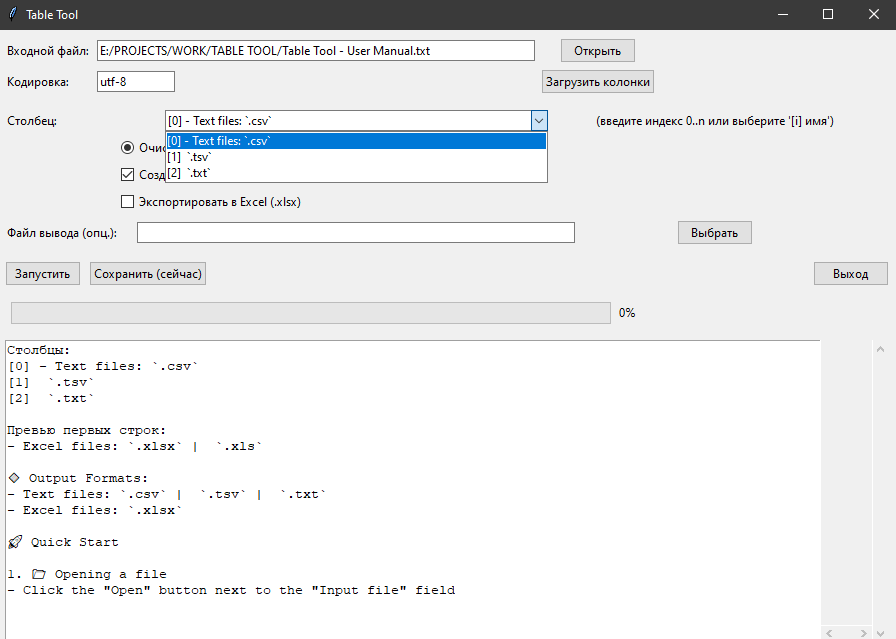
Table Tool
Table Tool is a professional utility for processing tabular data that allows you to:
- ✅ Clear the contents of selected columns in tables
- ✅ Delete entire columns from tabular files
- ✅ Process large files without the interface freezing
📁 Supported Formats
🔹 Input Formats:
- Text files: `.csv`, `.tsv`, `.txt`
- Excel files: `.xlsx`, `.xls`
🔹 Output Formats:
- Text files: `.csv`, `.tsv`, `.txt`
- Excel files: `.xlsx`
🚀 Quick Start
1. 📂 Opening a file
- Click the "Open" button next to the "Input file" field
- Select your tabular file
- The program will automatically detect the delimiter and encoding
2. 🔍 Loading columns
- Click the "Load columns" button
- All columns of your table will appear in the dropdown list
- The preview area will display the headers and the first rows
3. ⚙️ Selecting an action
🧹 Clear column - clears the data in the selected column
🗑️ Delete column - completely removes the column from the table
4. 🎯 Selecting a column
- Select a column from the dropdown list in the format `[number] name`
- Or enter the column number manually (starting from 0)
5. 💾 Output settings
🔒 Create .bak copy - creates a backup copy of the original file
📊 Export to Excel - converts the result to XLSX format
📝 Output file - Specify the save path or leave it blank for automatic naming
6. 🚀 Start Processing
- Click the "Start" button
- Monitor the progress in the progress bar
- Wait for the success message
🛠️ Additional Features
⌨️ Keyboard Shortcuts
- `Ctrl+C` - Copy
- `Ctrl+V` - Paste
- `Ctrl+X` - Cut
- Right-click - Context menu
🔄 Batch Processing
- Multiple files can be processed sequentially
- Repeat steps 1-6 for each file
📋 Preview
- The bottom of the window displays:
- A list of all columns with numbers
- A preview of the first 10 rows of data
- Automatically updates after processing
⚠️ Important Features
🎪 Automatic Format Detection
- The program automatically detects the delimiter (comma, tab, semicolon)
- Supports various text file encodings
🐛 Error Handling
- Detailed error messages are displayed for file reading errors
- The program does not freeze when processing large files
- Maintains functionality with incorrect settings
💡 Usage Tips
1. For large files, use text formats instead of Excel
2. Before mass processing, test on a small file
3. If the file does not open, try changing the encoding
4. Always create .bak copies for important data
🆘 Troubleshooting
❌ File does not open
- Check the file path
- Make sure the file is not open in another program
- Try a different encoding
❌ Incorrect data in preview
- The program may have incorrectly identified the delimiter
- Check the source file in a text editor
❌ Error when processing Excel
- Make sure... - Make sure openpyxl is installed: `pip install openpyxl`
- Check that the file is not password protected
The program does not require the installation of additional software and works on any version of Windows with Python 3.6+
Table Tool is a professional utility for processing tabular data that allows you to:
- ✅ Clear the contents of selected columns in tables
- ✅ Delete entire columns from tabular files
- ✅ Process large files without the interface freezing
📁 Supported Formats
🔹 Input Formats:
- Text files: `.csv`, `.tsv`, `.txt`
- Excel files: `.xlsx`, `.xls`
🔹 Output Formats:
- Text files: `.csv`, `.tsv`, `.txt`
- Excel files: `.xlsx`
🚀 Quick Start
1. 📂 Opening a file
- Click the "Open" button next to the "Input file" field
- Select your tabular file
- The program will automatically detect the delimiter and encoding
2. 🔍 Loading columns
- Click the "Load columns" button
- All columns of your table will appear in the dropdown list
- The preview area will display the headers and the first rows
3. ⚙️ Selecting an action
🧹 Clear column - clears the data in the selected column
🗑️ Delete column - completely removes the column from the table
4. 🎯 Selecting a column
- Select a column from the dropdown list in the format `[number] name`
- Or enter the column number manually (starting from 0)
5. 💾 Output settings
🔒 Create .bak copy - creates a backup copy of the original file
📊 Export to Excel - converts the result to XLSX format
📝 Output file - Specify the save path or leave it blank for automatic naming
6. 🚀 Start Processing
- Click the "Start" button
- Monitor the progress in the progress bar
- Wait for the success message
🛠️ Additional Features
⌨️ Keyboard Shortcuts
- `Ctrl+C` - Copy
- `Ctrl+V` - Paste
- `Ctrl+X` - Cut
- Right-click - Context menu
🔄 Batch Processing
- Multiple files can be processed sequentially
- Repeat steps 1-6 for each file
📋 Preview
- The bottom of the window displays:
- A list of all columns with numbers
- A preview of the first 10 rows of data
- Automatically updates after processing
⚠️ Important Features
🎪 Automatic Format Detection
- The program automatically detects the delimiter (comma, tab, semicolon)
- Supports various text file encodings
🐛 Error Handling
- Detailed error messages are displayed for file reading errors
- The program does not freeze when processing large files
- Maintains functionality with incorrect settings
💡 Usage Tips
1. For large files, use text formats instead of Excel
2. Before mass processing, test on a small file
3. If the file does not open, try changing the encoding
4. Always create .bak copies for important data
🆘 Troubleshooting
❌ File does not open
- Check the file path
- Make sure the file is not open in another program
- Try a different encoding
❌ Incorrect data in preview
- The program may have incorrectly identified the delimiter
- Check the source file in a text editor
❌ Error when processing Excel
- Make sure... - Make sure openpyxl is installed: `pip install openpyxl`
- Check that the file is not password protected
The program does not require the installation of additional software and works on any version of Windows with Python 3.6+
No customer reviews yet.