No recoil - Macros xml for mice bloody - workshop 8
- Price in currencies:
- 12.29 $ · 935 RUB · 10 €
- Category:
- Macros
- Item:
- NO RECOIL-MACROS_PACK-BloodyWorkShop8.zip (3.63 KB)
- Uploaded:
- 06.10.2026 13:50:34
- Sales:
- 1
- Refunds:
- 0
- Seller:
- MacrOleg · about the seller and their products
DESCRIPTION
No recoil - Macros xml for mice bloody - workshop 8
Simple No Recoil macros set for removing recoil, consistent vertical-only recoil of weapons in games using Bloody mice supported by the Bloody WorkShop8 program.
If the recoil is inconsistent, the recoil compensation will work approximately up to the 10th shot. After that, the crosshair may start to move up or down.
Do not use these macros in games such as Escape from Tarkov, The Finals, CS2, or RUST.
The video demonstrates the setup process for Razer mice: https://youtu.be/T3AIIWzhPU8. The setup process for Bloody mice is similar; you just need to select the appropriate macro.
Macros for automatic weapons with the .xml extension are only for Bloody WorkShop8.
Macros with the .xml extension also exist for Razer Synapse 3 and 4, but they are not compatible with Bloody WorkShop8.
1. Exit the Bloody WorkShop8 program.
2. Run the self-extracting archive Macros.exe and click Extract.
If your antivirus reacts, click Allow.
The macros will be extracted into the "Macros" folder located at:
C:\Program Files (x86)\BloodyWorkShop8\BloodyWorkShop8\Accounts\Guest\Data\English\Scripts\Macros
If needed, you can right-click Macros.exe, open it with an archive manager, and manually extract the macros in case of issues with self-extraction.
3. Start the Bloody WorkShop8 program.
If your in-game aiming mode switches with a single right-click, use macros version:
v2.1, v2.2.4, v2.2.5
If your aiming mode is held while holding the right mouse button, use macros version:
v2.3, v2.4
When these macros are active, recoil control works while both right and left buttons are pressed.
If the right button is not pressed, the left button functions normally.
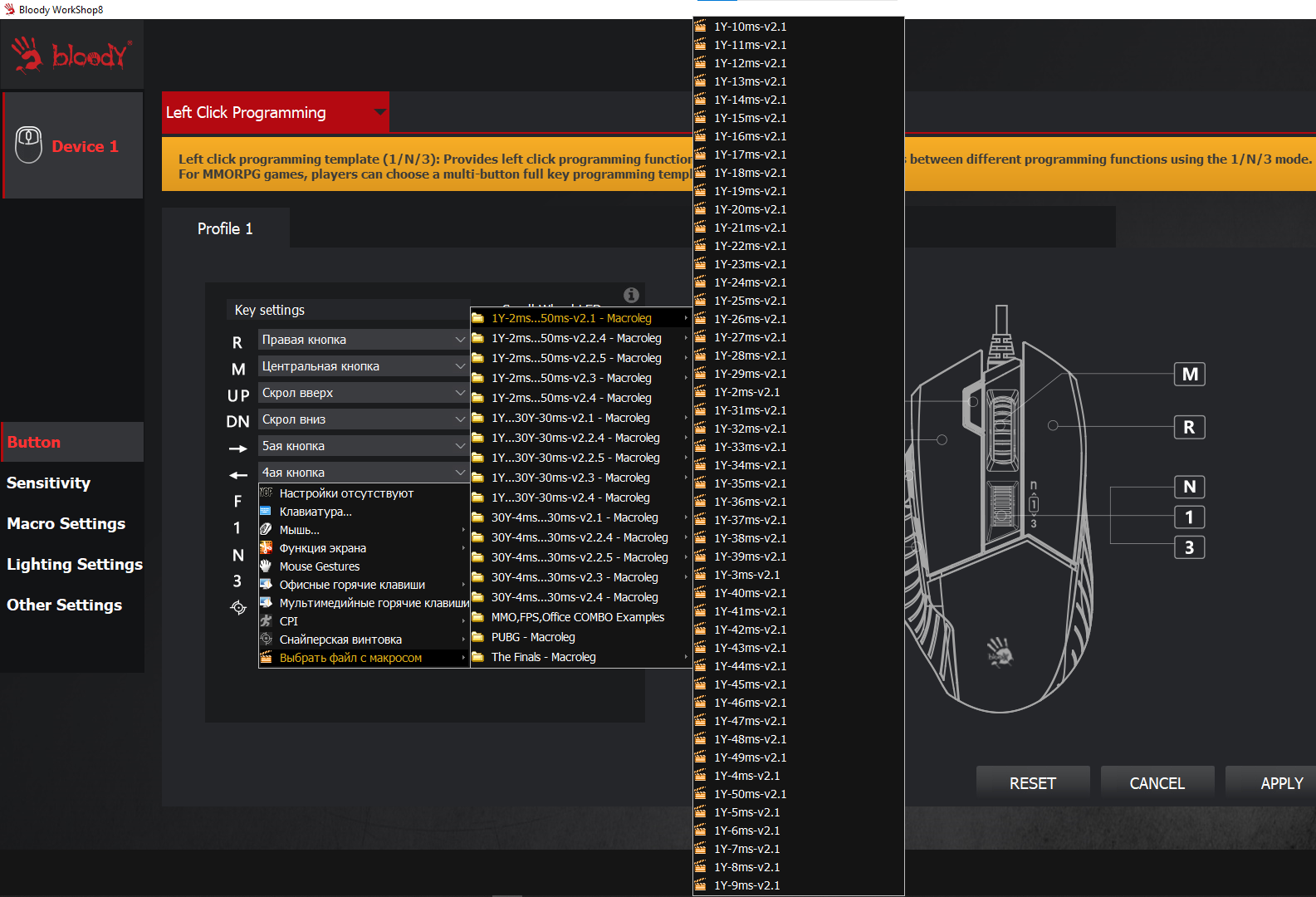
v2.1 — Load macros onto mouse button F (7th) if your mouse has it, or onto button 3 (middle click) or side buttons 5 and 4.
After pressing the macro button, recoil reduction will activate.
v2.2.4 — Load macros only onto button 4.
After pressing button 4, the macro activates and recoil control works while holding the left mouse button.
Press button 4 again to disable it and restore normal left-click function.
v2.2.5 — Load macros only onto button 5.
After pressing button 5, the macro activates and recoil control works while holding the left mouse button.
Press button 5 again to disable it.
v2.3 — Load macros onto button F (7th) if available, or onto 3 (middle click), 5, or 4.
After pressing the assigned button, the macro activates and recoil control works while holding both mouse buttons.
Press the same button again to deactivate.
M-...-v2.1 and M-...-v2.4 — Macros with the letter “M” in the name are used when the “Left Click Programming” mode is enabled.
They can be loaded onto the N and 3 buttons located behind the scroll wheel.
If your macro assignment menu includes the option “Execute left button programming” for buttons 5, 4, or 3 (middle click),
you can also assign macros with “M” to those buttons.
When pressing the macro button:
For M-...-v2.1, recoil control works while pressing the left button.
For M-...-v2.4, recoil control works while both right and left buttons are pressed.
To disable the macro, press button 1, located next to button N.
Additional information:
If, while using 1Y-15ms, the crosshair moves upward — try 1Y-10ms.
If with 1Y-10ms the crosshair moves downward — test values between 1Y-11ms and 1Y-14ms.
Focus on the first 10 shots; fire at a wall to check grouping. In most games, the recoil pattern is most stable during the first 10 shots. If bullets hit close to each other, the macro is well-tuned.
If using 1Y-2ms causes the crosshair to move upward, try macros from the 1Y...30Y-30ms folder.
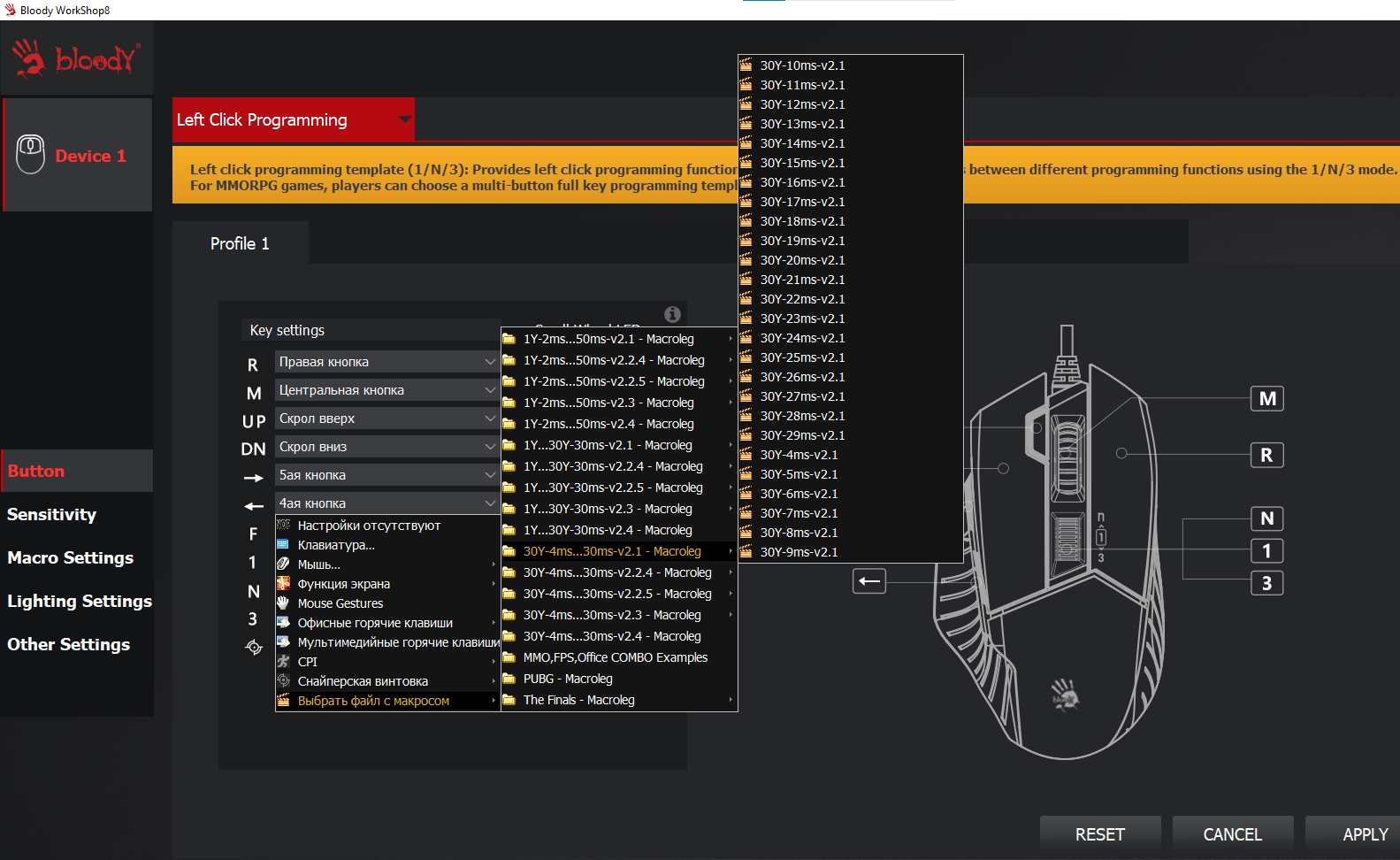
If using 30Y-30ms makes it move upward, try macros from 30Y-4ms...30ms.
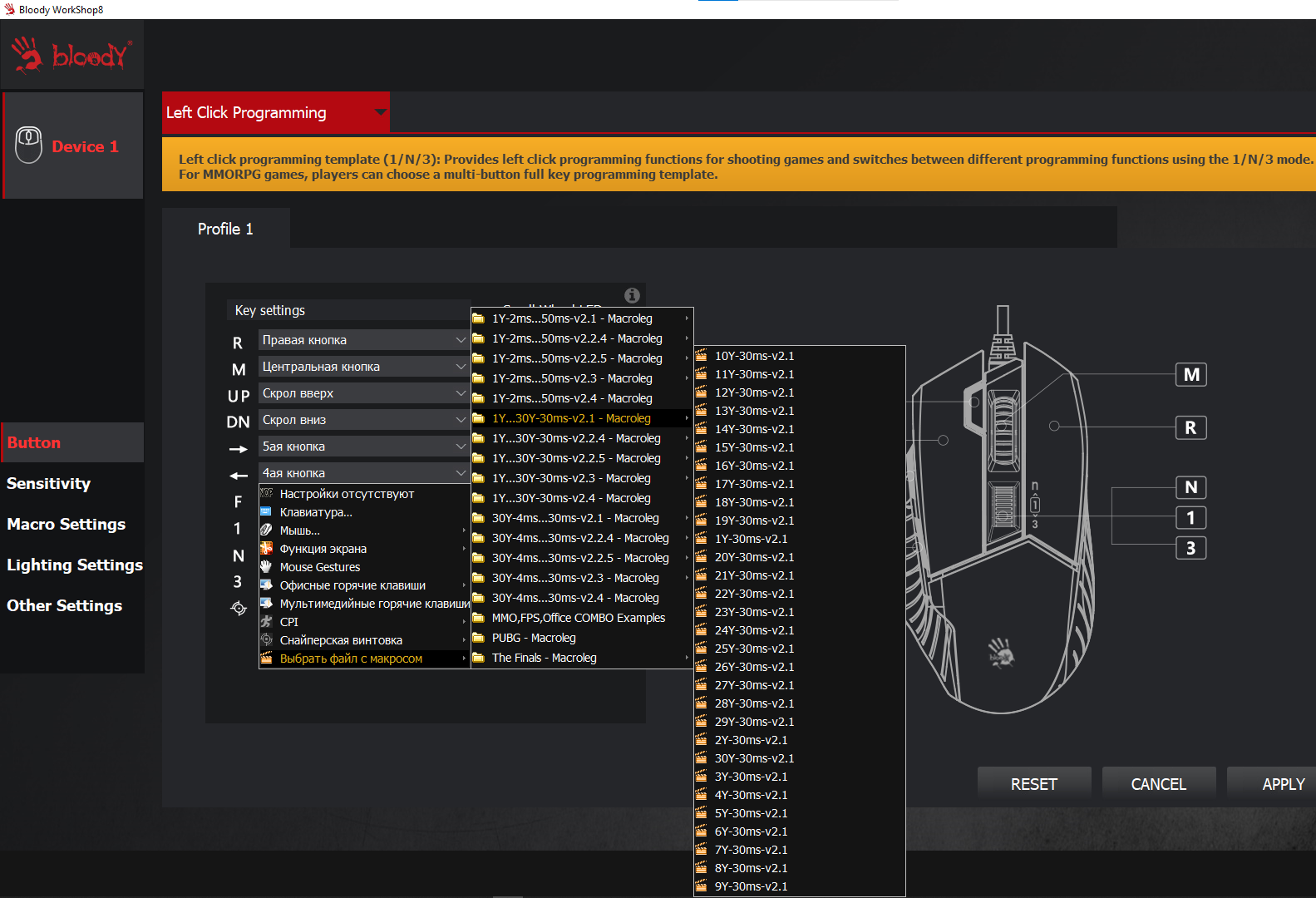
If 1Y-30ms causes downward drift, try macros from 1Y-2ms...50ms.
open the email and follow the link inside. It will take you to your personal account, where you will find my message with important information about product updates, new product releases, or useful information about the anti-cheat system. For example, warnings about anti-cheat detection, how to avoid a ban, etc.
Also join my Discord and VK groups. I post important information there as well.
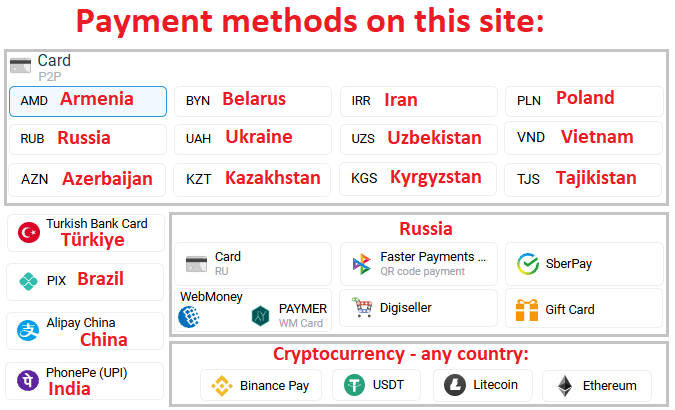
You can also access your personal account through the website oplata.info
After payment you will receive a link to download the archive with macros. If you accidentally closed the page with this link, you can return it by clicking on the link in the letter that came to your e-mail after payment. You can also go to your personal account at oplata.info and your purchase will be displayed there.
IF YOU HAVEN´T FOUND THE RIGHT MACRO ON SALE. THEN I CAN MAKE YOU A MACRO FOR A CERTAIN PAYMENT.
REVIEWS
Reviews: (0)
No customer reviews yet.